
Choose a Workspace That Fits Your Business
Your industry is a starting point, not a limit. Learn what changes, what stays and where to turn on another tool.
Key points
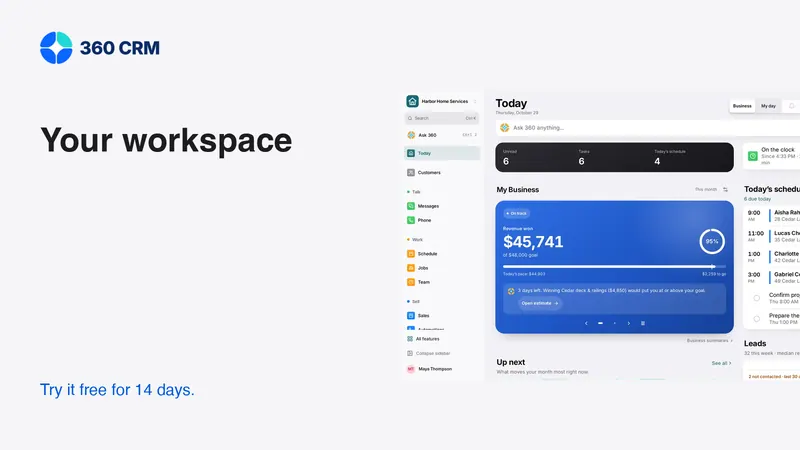
Your industry is a starting point, not a limit. In 360, choosing a business type recommends useful tools, words and starter templates. Core customer and lead tools remain relevant across businesses, and specialized tools stay available through Settings → Features. Changing the business type should preserve customer records and saved work.
The purpose is a clearer working day. A pool service should not have to search through unrelated specialist tools to find its daily work, and a professional office should not inherit a route screen simply because the software also serves field teams. Recommendations organize the experience without restricting what a business can choose.
Choose the closest description of your work
At signup, select the business type that best describes the work your team does most often. Think about the daily workflow rather than trying to find a perfect label for every service you might offer someday.
If none of the listed types fits, choose Other. You still get the everyday tools for customers and leads. An industry selection should not become a test that a business must pass before it can use the product.
Businesses can have mixed needs. A company may deliver both projects and recurring service, or combine appointments with estimates. Start with the closest recommendation, then review the tools needed for the actual work. The choice can evolve without requiring a new customer database.
Understand what an edition changes
An edition helps shape navigation, terminology and starter material. It can recommend a specialist tool where that tool is likely to be useful. It does not prove that every feature is appropriate for every business in the category.
A recommendation is not a permission rule
A tool hidden from the starting navigation is still available in Settings → Features. An administrator can enable it when the business needs it. Likewise, a recommended tool does not mean the team must use it immediately.
Separate visibility from access and purchase. User roles still determine what a person may do. A paid add-on may still require its own subscription or provider setup. Seeing a feature in the workspace does not establish that every external service connected to it is free or already configured.

Keep the core of customer work easy to find
Contacts and leads, Conversations, phone and texting, calendar and booking, estimates and invoices, reviews, automations and Today are recommended across business types. These tools cover common questions: who contacted us, what did we promise and what needs attention next?
Start with the parts that solve an immediate problem. A business receiving inquiries by email may begin with the shared conversation and task workflow. Another may start with estimates and follow-up. The core should support both without demanding that every available setting be configured first.
Keep customer records and current promises accurate before adding complexity. A focused workspace is useful only if the information in it reflects the work. Hiding unnecessary screens cannot compensate for unassigned inquiries or an estimate whose approved version is unclear.
Add specialist tools when the task calls for them
Routes and pool chemistry may fit pool service. Dispatch and crews can fit field operations. Recurring agreements may help businesses with ongoing service, while time tracking can matter to teams that need it. These are recommendations based on work patterns, not restrictions on business identity.
Ask a concrete question before enabling a tool: what task will it help us complete? Who owns the data? What will the team do differently tomorrow? If those answers are unclear, leave the tool available for later rather than making the daily workspace busier.
When a specialist tool is important, test its depth. A route list is not automatically route optimization, and a calendar is not automatically a complete dispatch system. Verify the actual capability against your operating requirements instead of relying on the industry label.
Review starter templates before using them
Starter templates can save setup effort, but they are not ready-made promises for every business. Read the wording, replace sample details and confirm that the scope matches your service. Check the recipient-facing result, not only the editing screen.
A template that mentions a deposit, response time or included service should reflect your actual agreement. Remove unsupported claims and unfamiliar jargon. If the template creates an automation, inspect the trigger, timing and stop conditions as well as the text.
Use fictional records for the first test. Ask a teammate to read the resulting message or document and explain what the customer is being asked to do. Their interpretation is a useful check that the template communicates the intended next step.

Turn on another feature through Settings
When a new need appears, open Settings → Features and find the relevant tool. Review what it does and any setup required, then enable it for the business. Keep the change tied to a task so the team understands why it has appeared.
A simple enablement checklist
- Name the business problem the tool will solve.
- Assign the person responsible for setup and ongoing use.
- Check permissions and any provider connection.
- Preview the customer-facing result where relevant.
- Test the normal path and an ordinary failure.
- Show the team where the tool lives and what to do next.
Do not confuse an enabled screen with a complete setup. A messaging tool may still need a connected provider, and a payment method may depend on account availability. Follow the visible setup guidance and verify a controlled example before relying on it for live work.
Preview an edition change before applying it
Businesses evolve. A company may shift from one-off projects toward recurring service, or add a new line of work. In Settings → Industry Edition, review the proposed changes before applying a different starting recommendation.
The change should preserve customer records and saved work. Previously created templates remain available, and explicit feature choices should be retained. Review the resulting navigation with the team so people know where their daily work now lives.
Do not use an edition change as a substitute for deleting old records or redesigning access. Those are separate decisions with different consequences. If a tool is no longer part of daily work, decide whether to hide it while retaining the history rather than assuming the underlying data should disappear.
Test the workspace with a real role
An administrator can often see more than a regular team member. Review the edition using the roles your staff will have. Confirm that useful tools are discoverable and that restricted data stays restricted.
Give each person a simple task: find a customer, read the latest question, prepare an estimate or identify today's next action. Observe without guiding every click. If people get lost, simplify the starting view or improve the naming before adding more instruction.
Test on the devices the team uses. A phone user working between appointments may need a different path from someone at a desk. The same underlying information should remain understandable even when the navigation adapts to the screen size.
Keep recommendations from becoming clutter
Review enabled tools as the business grows. A new feature should appear where the team expects it and have a clear purpose. It should not force everyone to learn another menu simply because it was added to the product.
Keep advanced settings behind a deliberate choice and preserve sensible defaults. The everyday path should remain short: find the record, understand the context and complete the next action. Specialist depth is useful when it is available without overwhelming that path.
Use the industry directory to explore starting recommendations, and review features for the tools behind them. The pricing page explains the business subscription and separate usage. Industry visibility does not change the responsibility to review provider costs or paid services before activating them.
Frequently asked questions
Does choosing an industry restrict the tools I can use?
No. It recommends a starting workspace. Other tools remain available through Settings → Features, so the business can enable them when they become useful.
Will changing editions delete my customers?
The edition change is intended to preserve records and saved work while applying recommendations non-destructively. Preview the change and review the resulting workspace with the team.
Does a visible tool mean its provider service is free?
No. Visibility, user permission, provider setup and paid subscriptions are different things. Review the tool's setup and current pricing before connecting services that incur charges.
Try 360 free for 14 days
Put one workflow from this article into practice. $79/month per business, unlimited users, every tool included.
See how 360 fits your trade
Keep reading
Sales & estimates
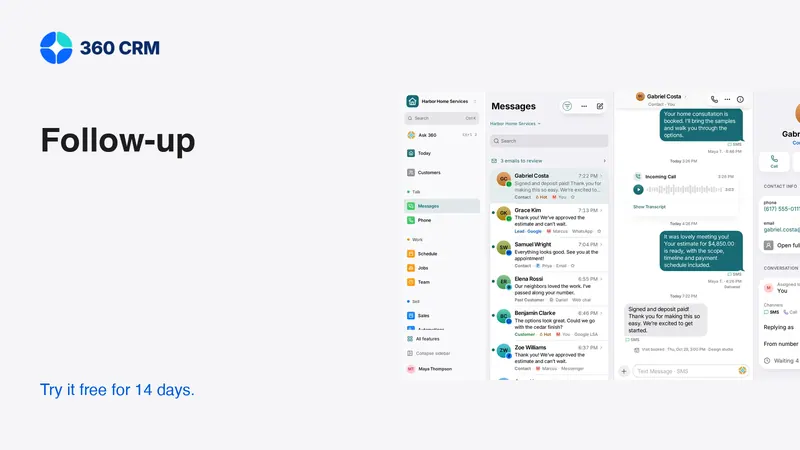
A Follow-Up Routine You Can Keep
Give every inquiry an owner, a next action and a date. A small routine that is easier to maintain as your business grows.
Sales & estimates
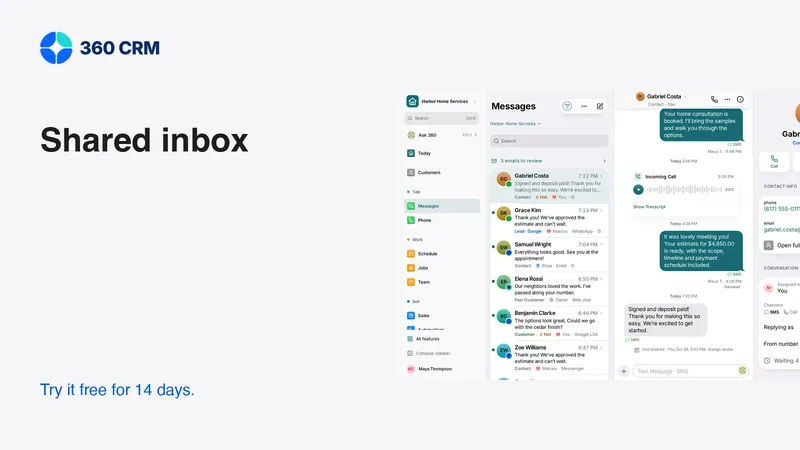
Make a Shared Inbox Work for Your Team
Keep the customer context together, make ownership visible and connect channels at a pace your team can support.
Industries
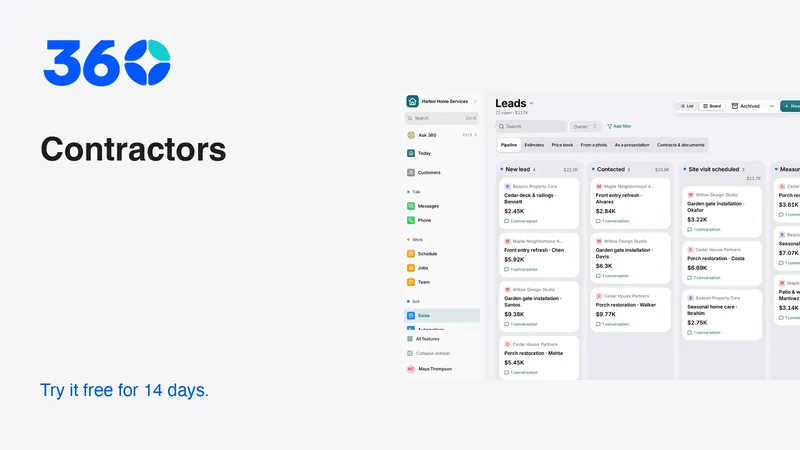
Best CRM for Contractors: A Practical Buying Guide
Choose contractor software with a real lead-to-job test. Compare estimates, follow-up, team access and costs before moving your customer records.