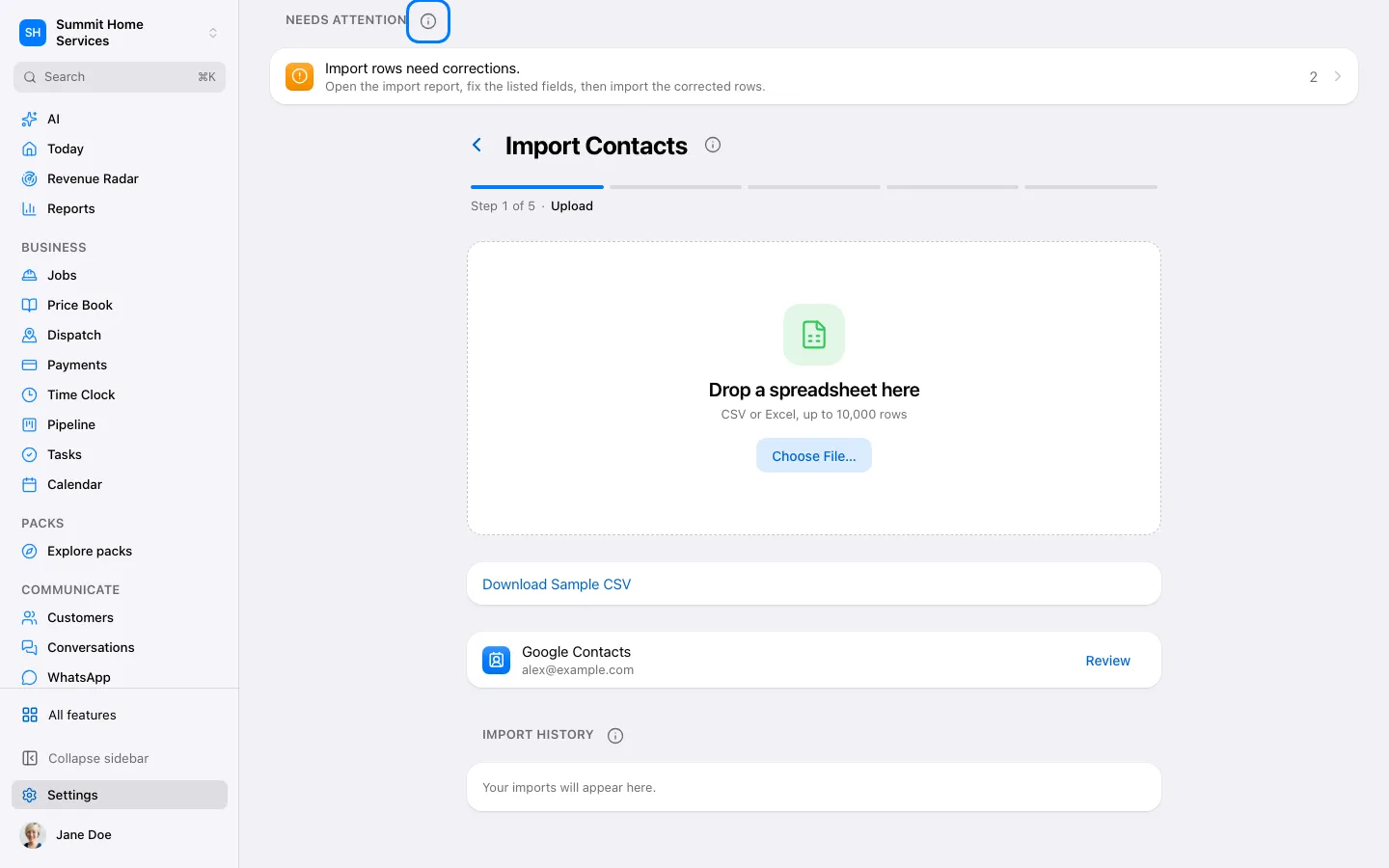
Export your contacts from the previous app, including Jobber, as CSV or a supported spreadsheet. Keep the original export as a backup.
Step by step
Export your contacts from the previous app, including Jobber, as CSV or a supported spreadsheet. Keep the original export as a backup.
Open Settings → Import contacts and upload the file. Map each column to the matching contact field; check a sample before continuing.
Choose duplicate handling and any tags or automation enrollment deliberately. Test a small file first, especially before enrolling contacts in a workflow.
Run the import and review the results and failed rows. Correct only the failed rows and verify contacts, phone numbers and notes.
Phone numbers, message history and live integrations do not move simply because contacts were imported. Use the separate transfer and connection flows for those services.