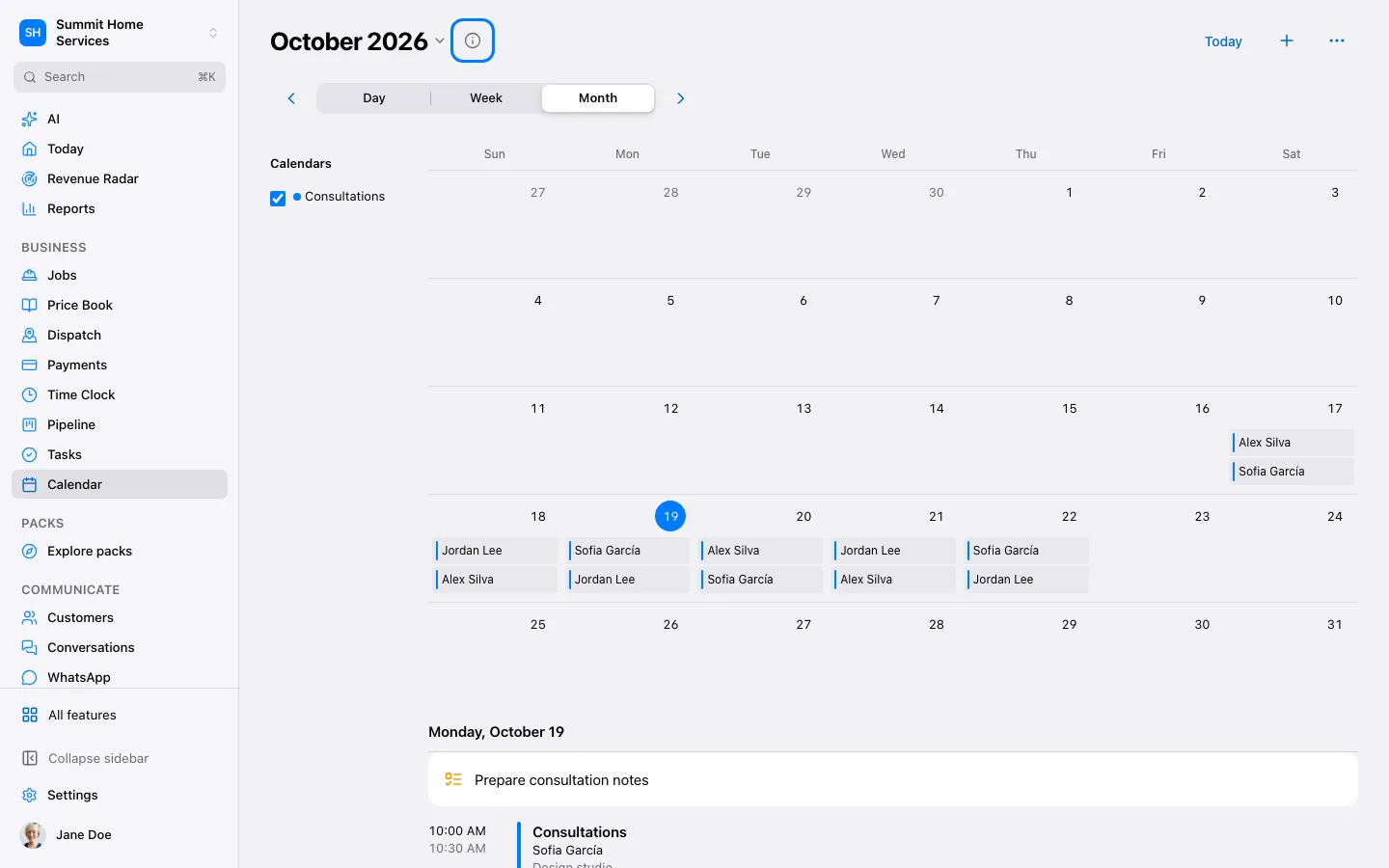
Calendar keeps appointments together and booking links let customers choose available times.
Step by step
Open Calendar and review availability.
Add an appointment or share a configured booking link.
Check the time zone, assigned person, and reminders.
Arrival windows are on for most businesses: customers pick a two-hour window (9–11, 11–1, 1–3, 3–5) instead of an exact time. Change the windows or turn them off in Calendar → Settings → Arrival windows, or ask Ask 360.
Booking rules keep customers from booking too soon: at least 48 hours' notice, bookings made on a weekend start on Tuesday, and Saturday and Sunday stay closed. Change them in Calendar → Settings → Booking rules; you can still add any time yourself in the calendar.
Need it sooner? When a customer asks for earlier than your rules allow, your AI offers the earliest open time and asks the owner and admins (and the person who'd go). Approve, offer another time or decline from Today; if nobody answers in 2 business hours the customer hears back anyway. Change this in Calendar → Settings → Sooner visit requests.